How to create Presentations
Overview
The Presentation Generator allows you to create professional, multi-card slide decks in seconds by leveraging your saved Brand Voice. This feature ensures that every presentation—whether for a client proposal, a service overview, or an internal report—automatically adopts your brand’s colors, mission, and professional expertise.
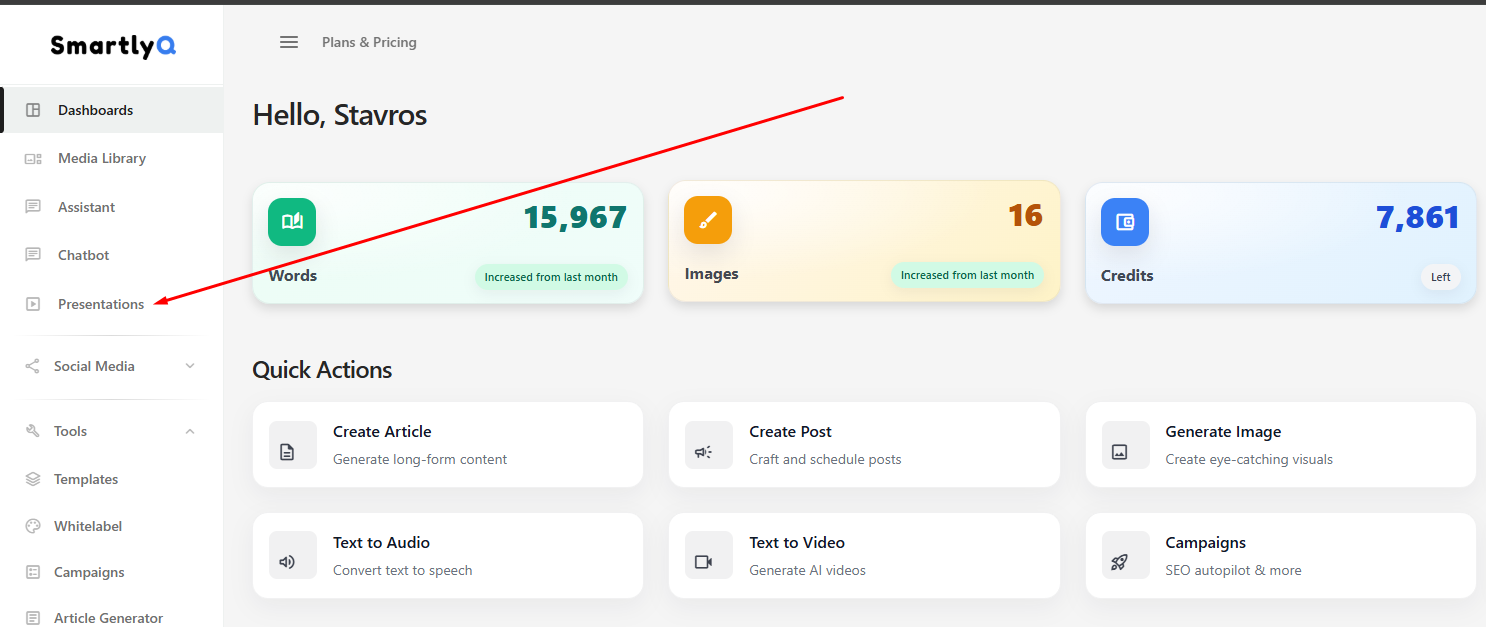
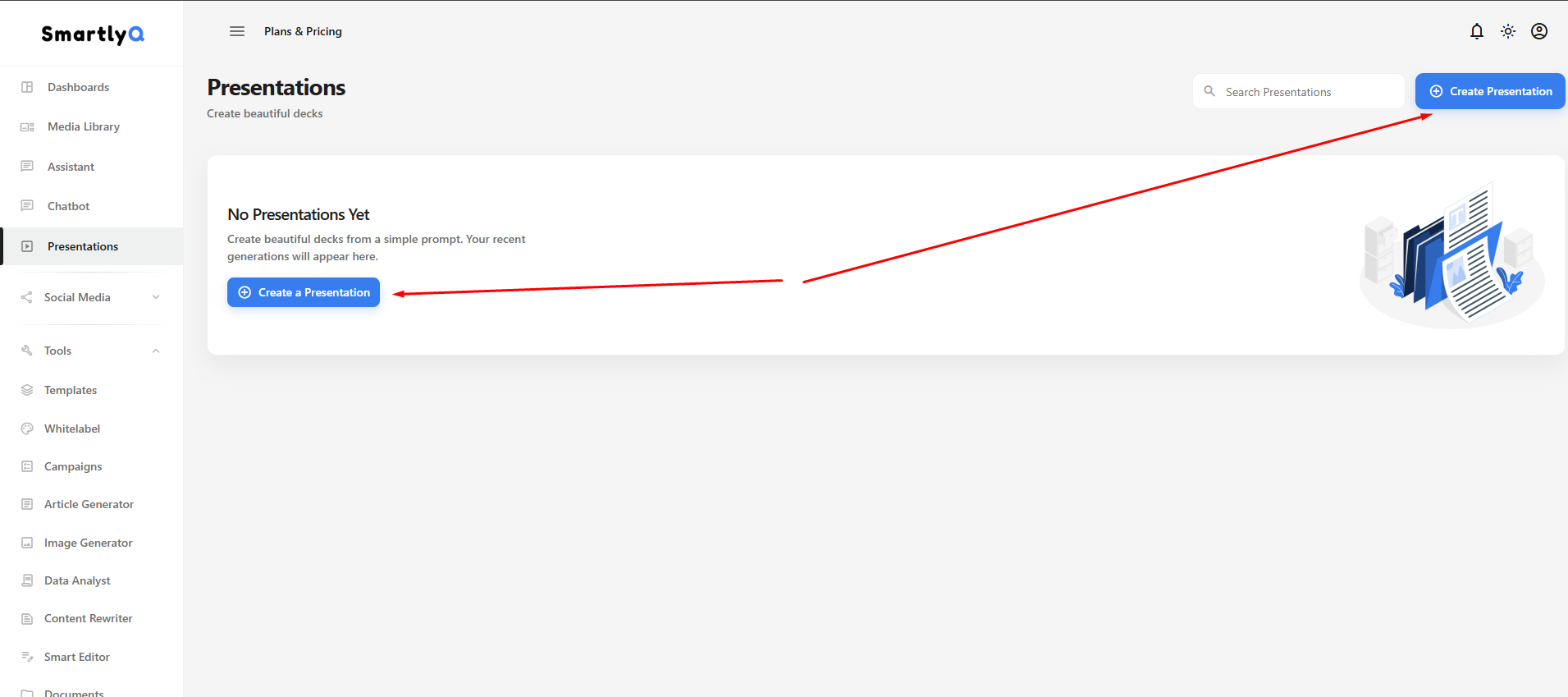
To find the Presentations feature, navigate to the left-hand main menu and select the "Presentations" item.
Create a Presentation:
To create a presentation, simply press the "Create a Presentation" button:
Presentation details
In the next screen, you will enter the details to generate your presentation. Below is a detailed guide to the available options based on the platform's interface.
1. Core Setup: Brand Integration
At the top of the generator, you can link your specific company identity to the output.
-
Use Brand Voice: A toggle that, when enabled, applies your pre-configured brand personality to the slides.
-
Select a Brand: A dropdown menu to choose which saved brand the generator should reference for mission statements and service descriptions. If you have created your Brand in your account, you can find and select it here
2. Preset Selection
Presets allow you to quickly apply saved snippets of information to the generator, ensuring consistency without manual typing. These are only available if you have created a Brand (and added presets as well) in your account and if you have enabled the Use Brand Voice toggle.
-
Tone Preset: Defines the emotional style of the writing (e.g., Professional, Energetic, Authoritative).
-
Audience Preset: Tailors the language level and focus for specific groups (e.g., "SMB Owners" or "Tech Founders").
-
CTA Preset: Automatically adds your preferred Call-to-Action to the final slides (e.g., "Book a strategy session").
-
Rules Preset: Enforces specific content constraints, such as "Avoid technical jargon" or "Always link features to ROI".
3. Content Generation
-
Title: The official name of your presentation. If left blank, the AI will auto-generate one based on your prompt.
-
Prompt / Content: The primary input area. You can describe the presentation topic or paste in detailed notes and structured text for the AI to organize into slides.
-
Prompt Helper: A built-in assistant to help you refine your instructions for better results.
4. Formatting & Logic
-
Format: Set to "Presentation" for standard slide decks. Other options include Webpage, Document, and Social.
-
Text Mode: Usually set to "Generate" to have the AI write all slide copy from scratch. Other options include Condense and Preserve.
-
Cards: A counter to determine the length of the deck. The generator is optimized for concise, high-impact stories across up to 12 cards.
-
Export: The file format of the generated presentation. There are two available formats: PDF and PPTX. If "None" is selected, then the output format will be PDF.
-
Theme: Allows you to select a premade visual style or template for your deck; selecting "Auto-select" lets the AI choose the best match for your brand.
-
Language: Set the primary language for the generated text (e.g., Greek or English).
-
Image Source: Determines where the AI pulls visuals from (e.g., Auto-search for professional stock imagery). You can also select "AI generated" to have the AI generate some images for you. In that case, a new field will appear next to it so you can select the image quality.
-
Additional Instructions: Use this area for any extra constraints or specific style instructions that the AI should follow during generation.
5. Advanced Options
For granular control over the final look and feel, use the advanced panel:
-
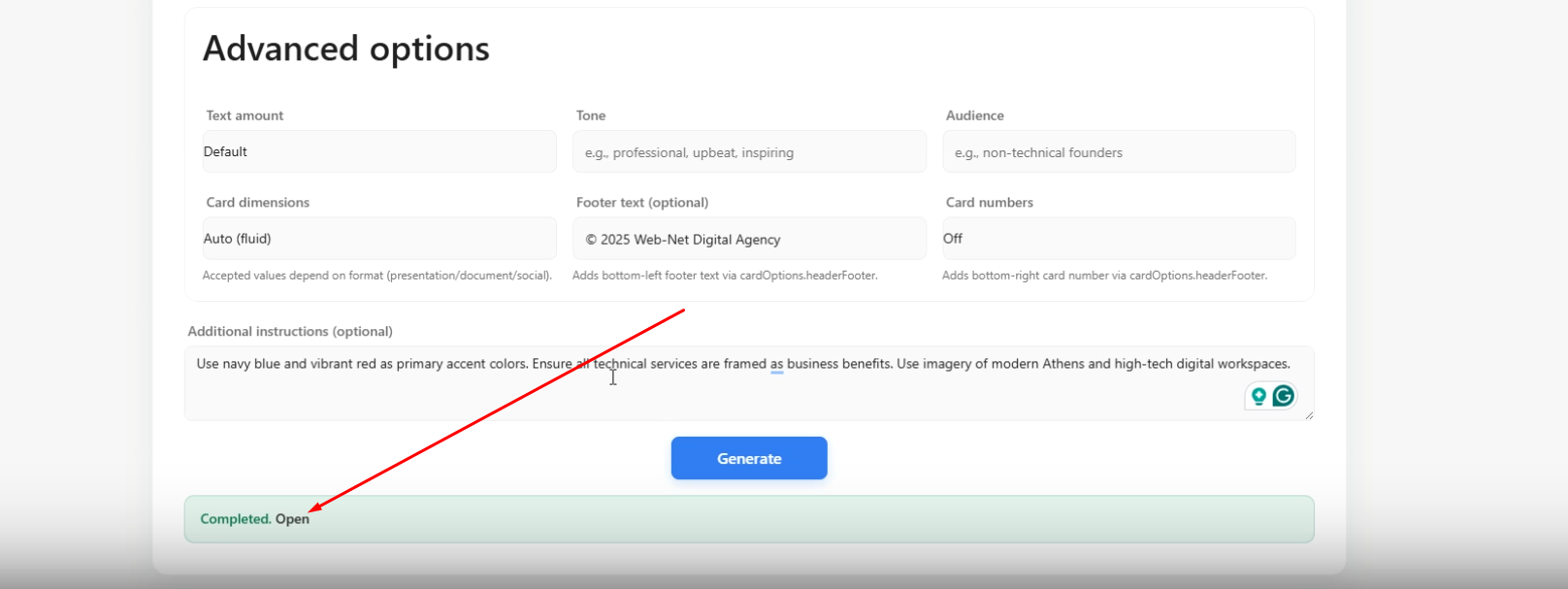
Text Amount: Adjust the density of information on each card. Options include: Brief, Medium, Default, Detailed, or Extensive.
-
Tone: Manually override or refine the emotional style (e.g., Professional, Upbeat) if a preset is not selected.
-
Audience: Specify the exact group the content is for (e.g., non-technical founders) to adjust the complexity of the language.
-
Card Dimensions: Choose the aspect ratio or format for your cards. Options include 16x9, 4x3, Letter, A4, Square (1x1), or Mobile (9x16). Use Auto (fluid) for standard responsive layouts.
-
Card Numbers: A toggle to turn slide numbering On or Off at the bottom-right of each card.
-
Footer Text: You can add consistent text, such as a copyright notice or website URL, to the bottom of every card
-
AI image style: You can type in the style of the generated image, e.g., photorealistic, minimal, line art, etc. Note: Only applies when the Image source is “AI generated”.
Generating content
When ready, simply hit the "Generate" button to begin the generation process. A message will appear notifying you of the process status. This may take a few minutes, depending on the process. Please don't close the tab, or else the generation may be interrupted.
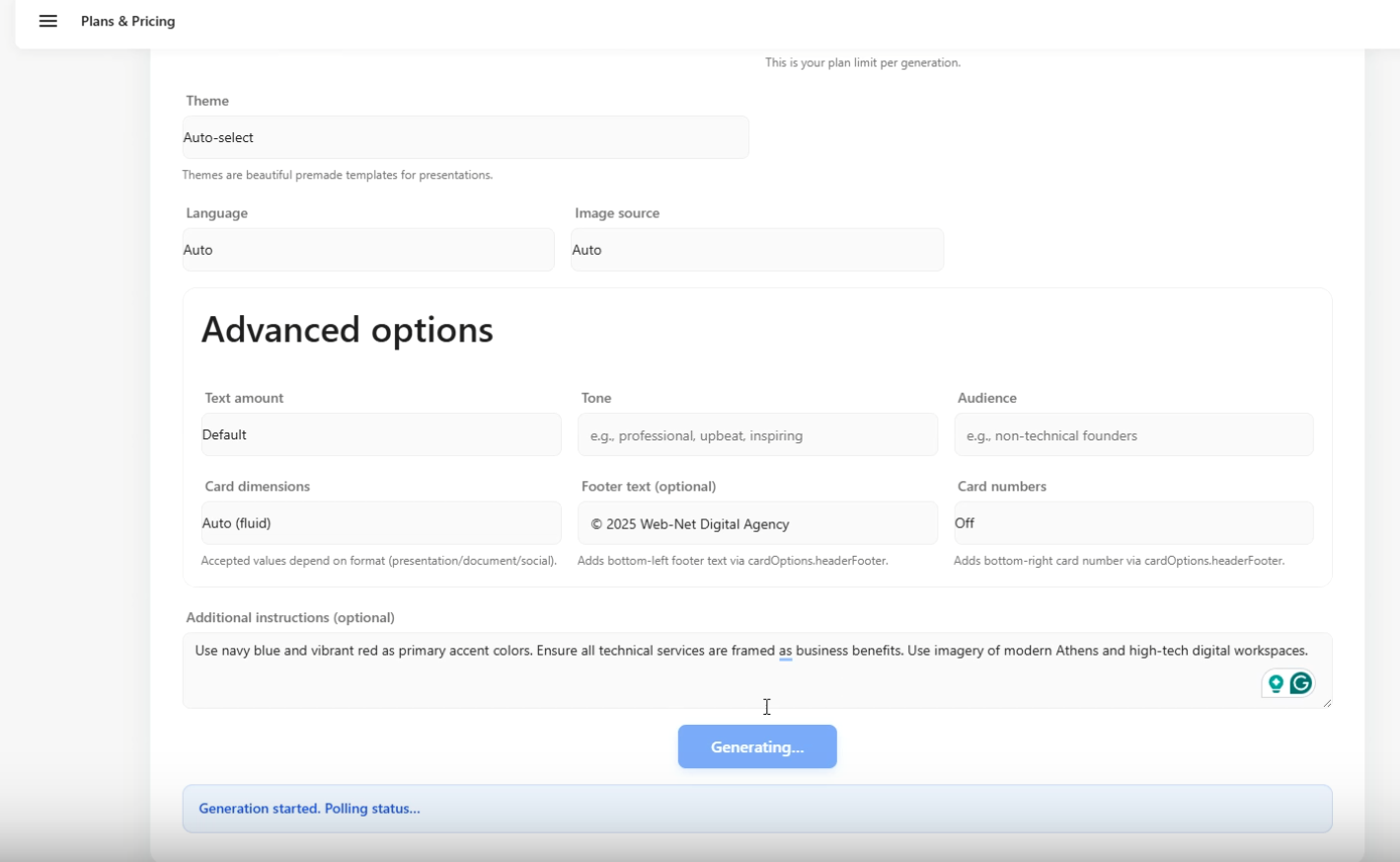
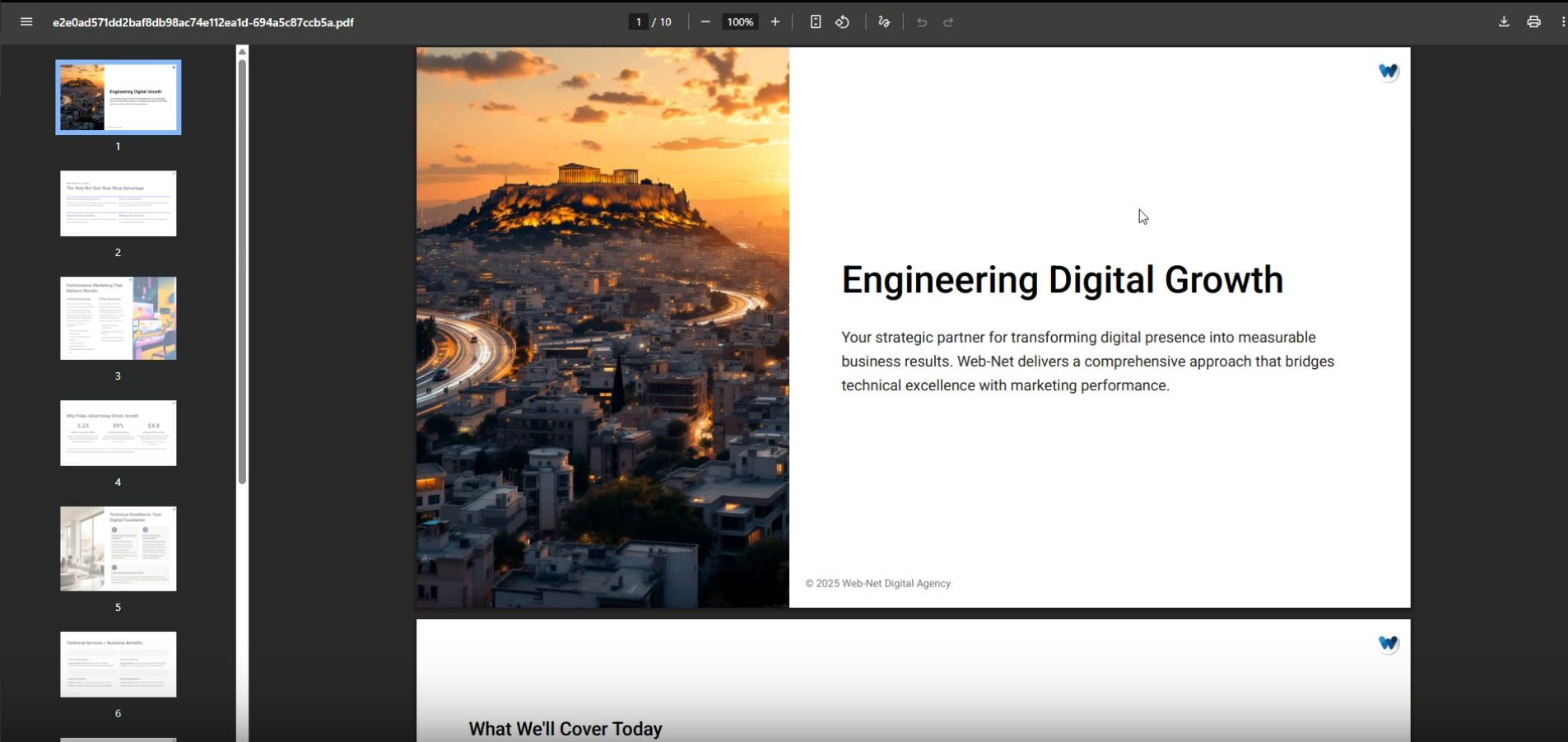
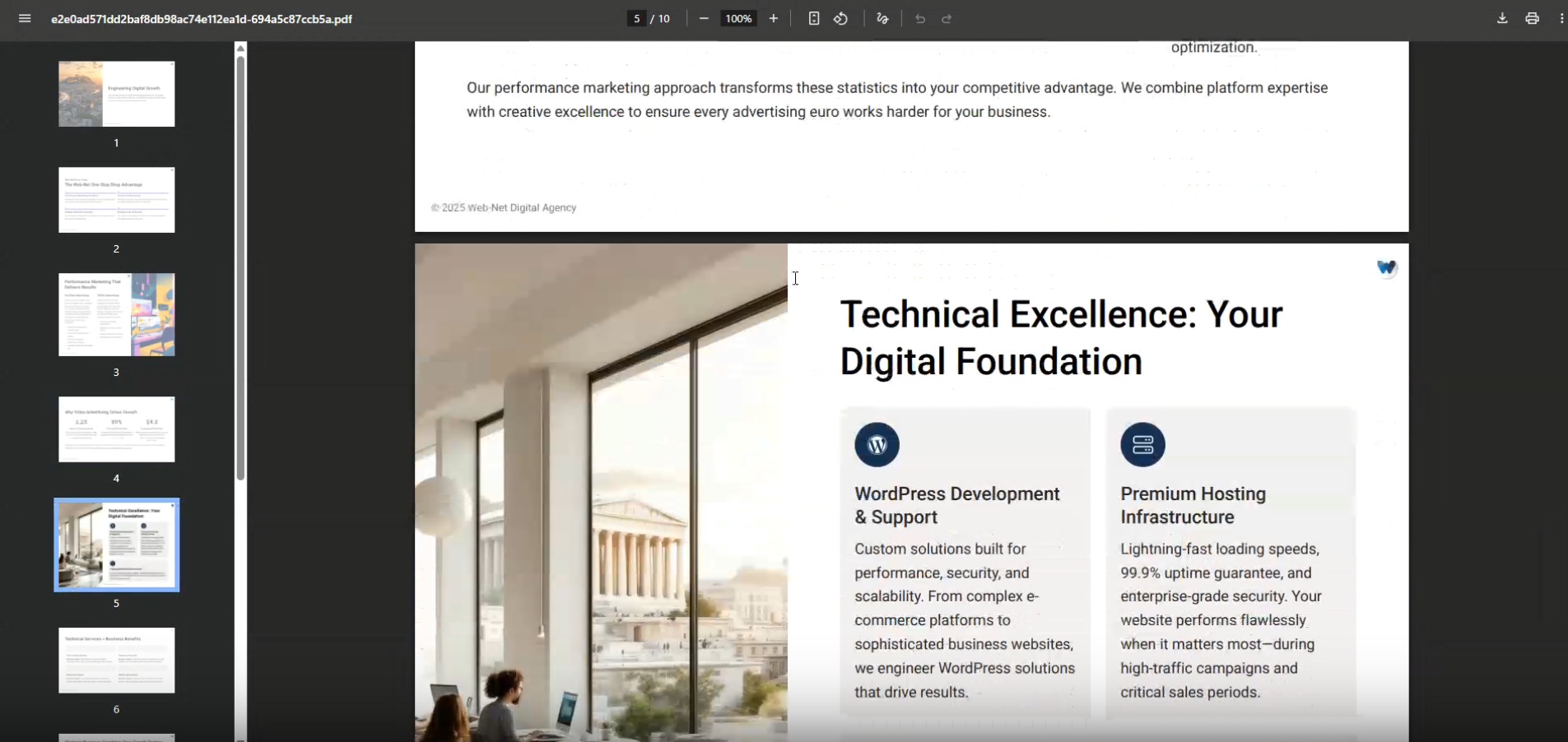
When the document is ready, the message will change to "Completed" with a green background, along with a link to Open your generated presentation: