How to use the Text to Video Tool
The Text to Video Tool on SmartlyQ makes turning your ideas into captivating videos easier than ever. Whether you’re crafting content for social media, marketing campaigns, or storytelling, this AI-powered tool lets you bring your vision to life in just a few clicks. Simply add your prompt, choose a video generation model, fine‑tune the settings, and watch as your concept transforms into a high‑quality video — ready to share with the world.
Step 1: Access the Text to Video Tool
- Log in to your SmartlyQ account
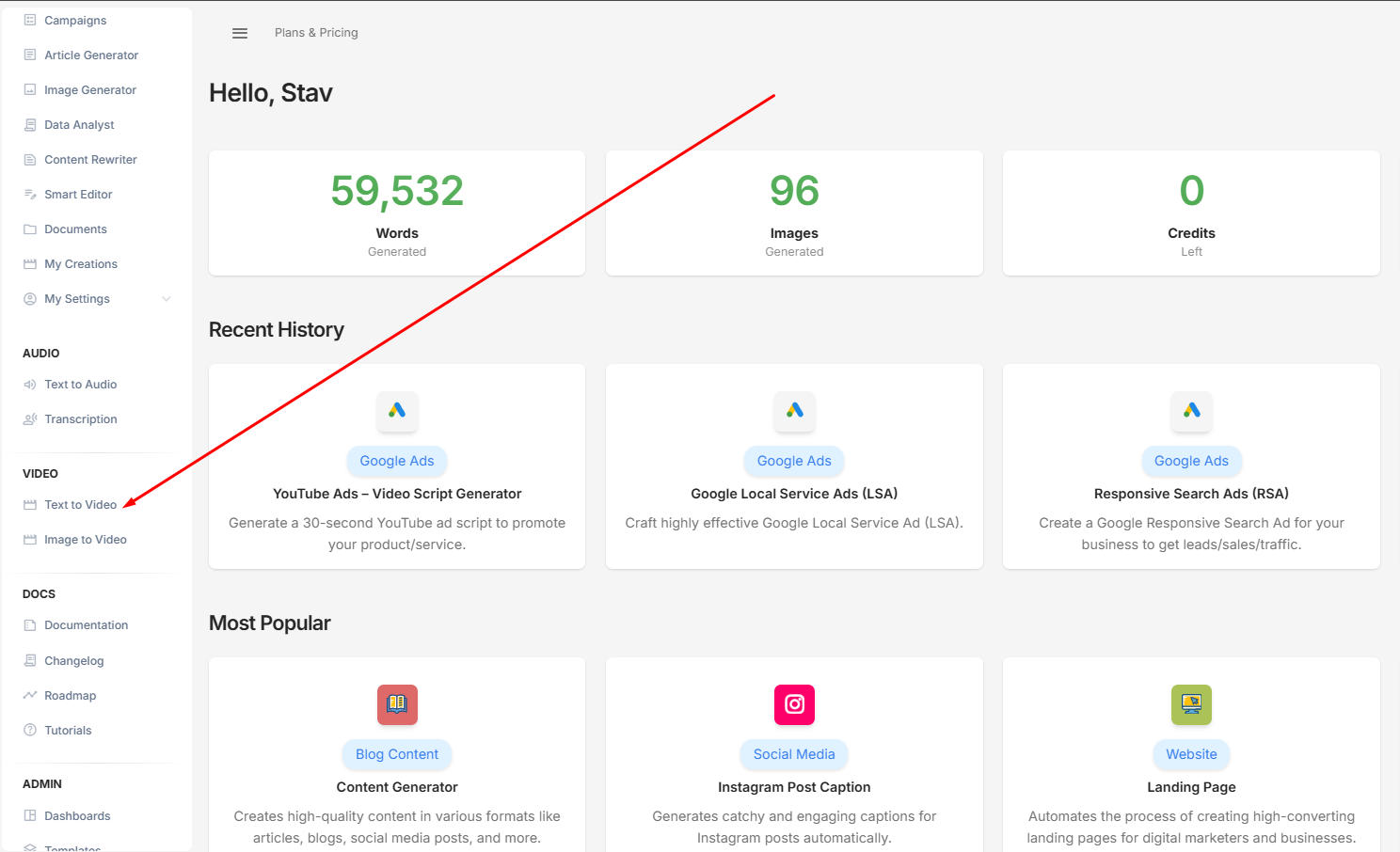
- Navigate to the "VIDEO" section on the left-hand menu and select the "Text to Video" item.
Step 2: Input information into the generator
In the Text to Video tool screen, you will be able to input some parameters to create your video. Below you will find some common key parameters available in the tool, though do keep in mind that not all are available across all AI models.
-Select an AI video model
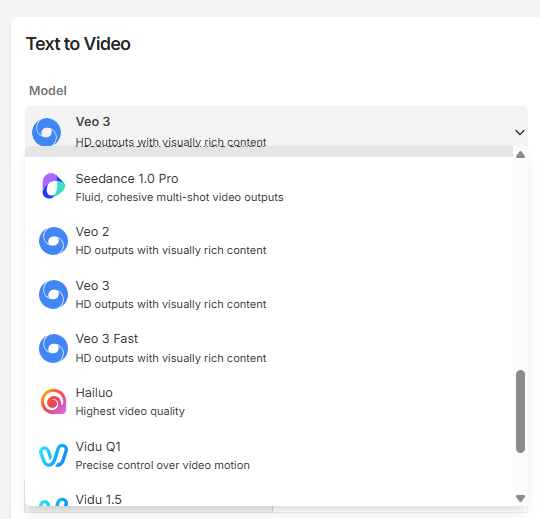
There are over 24 models to choose from, each with its own unique characteristics and specialty. Choose the one that best meets your needs.
- Enter your text prompt
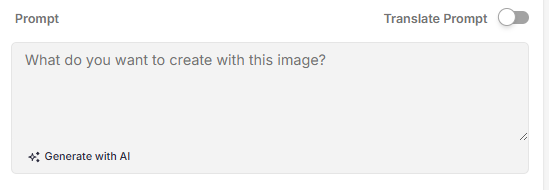
You can describe your idea in text to let the AI know what to generate. You can also generate an ideal prompt if you're not sure exactly how to write it by pressing "Generate with AI". If writing in a language other than English, you can toggle the "Translate Prompt" to get better results.
- Video Length

Some models offer a selection of video lengths.
- Video Resolution

Some models allow you to choose a resolution for the output video.
- Aspect Ratio

You can also select a different aspect ratio to display the generated video.
- Seed

A number that controls how the AI generates random details in your video. Using the same seed with the same settings will recreate the same result. Press the recycle icon to generate a random number in order to generate a new variation of your intended video.
- Output Video Number

This parameter defines how many videos you want to generate with the same parameters
- More Parameters
Some Video AI models offer unique parameters not found in other models. Some examples include:
- Negative Prompt
- Prompt Strength
- Style
- Mode
- and more
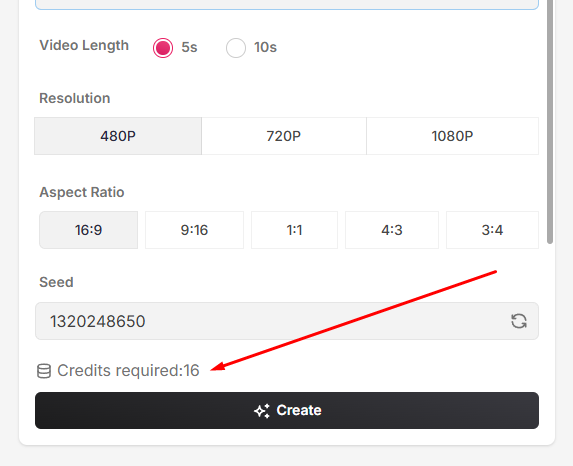
- Credits Calculator
At the bottom of each model, you can see a credits calculator so that you know exactly how many credits a model will cost you.
Example Use Case
Let's go through an example using the Google Veo 3 model to see how it works.
- Select Veo 3 from the model list
- Add the following detailed prompt:
"A neon‑lit cyberpunk city at night, with rain‑soaked streets reflecting vibrant holographic signs. In the center, a trench‑coat‑wearing detective stands under a flickering streetlamp, smoke curling from his breath. The atmosphere is dark and moody, inspired by Blade Runner, with towering skyscrapers fading into the mist and flying cars passing overhead." - Leave video length as is
- Choose a resolution
- Leave aspect ratio as is
- Leave the negative prompt empty
- Leave the seed as is, or experiment with a different one
- Let's just make one video for the example
- Finally, hit "Create"
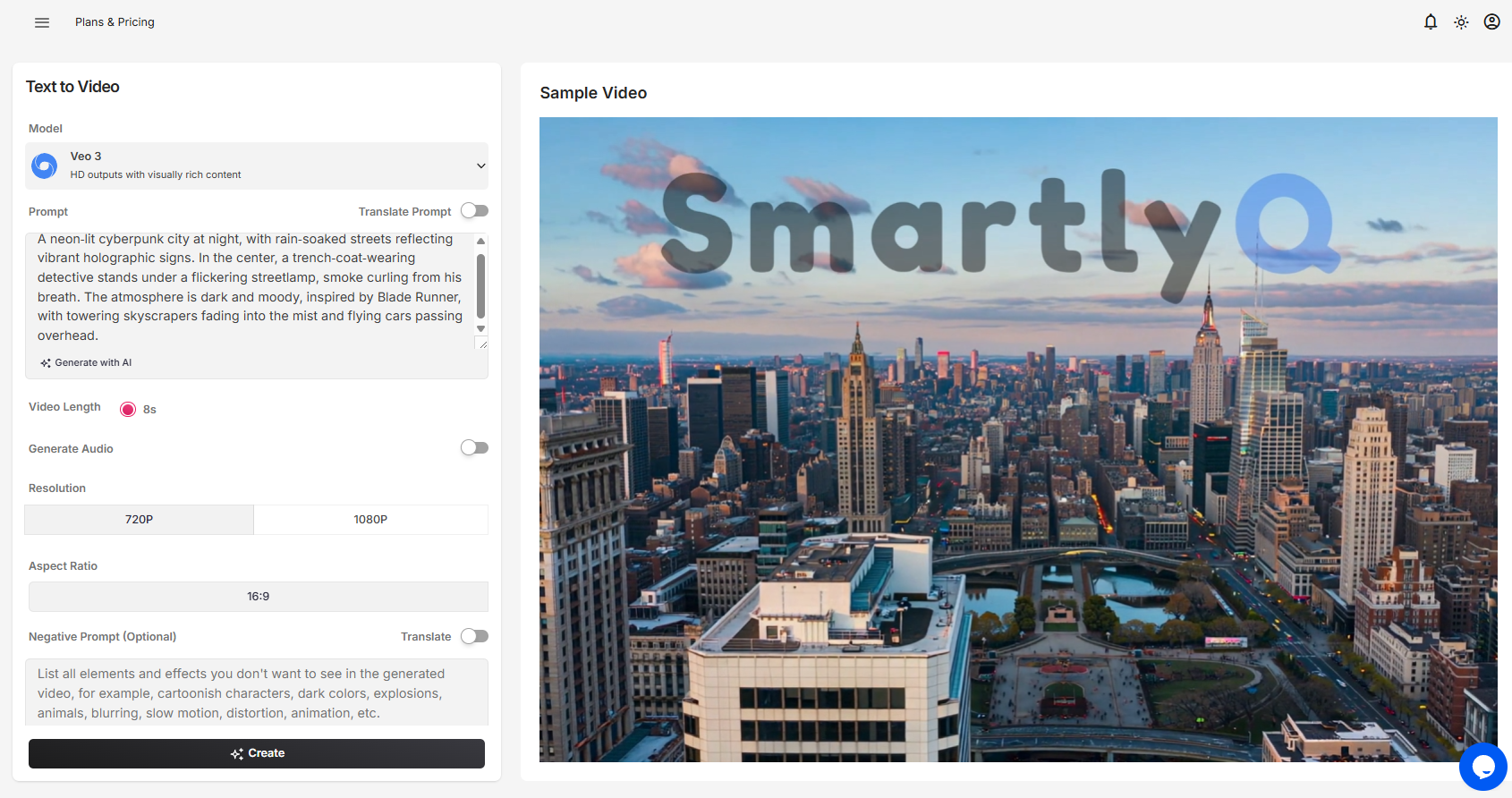
You will see the following screen:
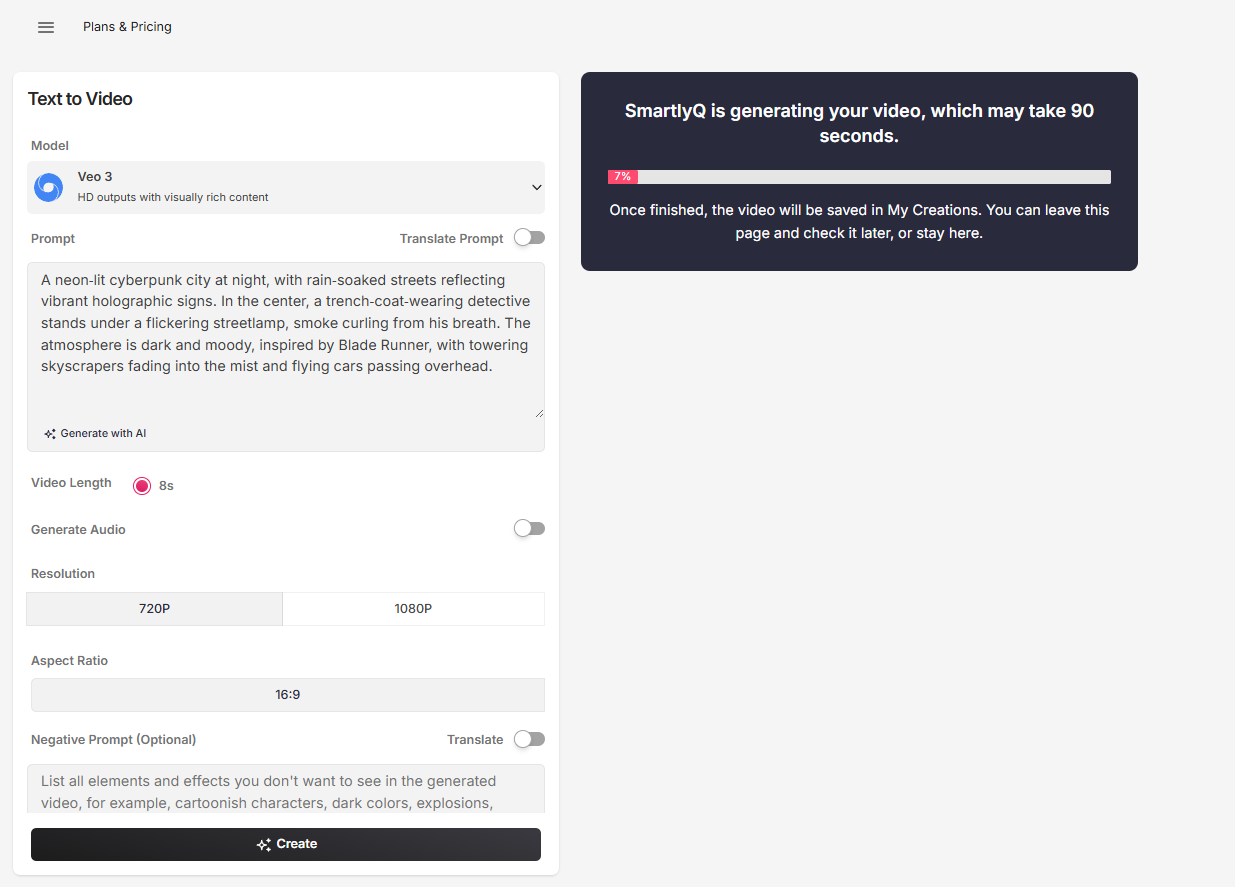
This will tell you that "SmartlyQ is generating your video, which may take 90 seconds."
Once finished, the video will be saved in My Creations. You can leave this page and check it later, or stay here.
Once the video is generated, you can see it on the right. You can play the video and also download it.
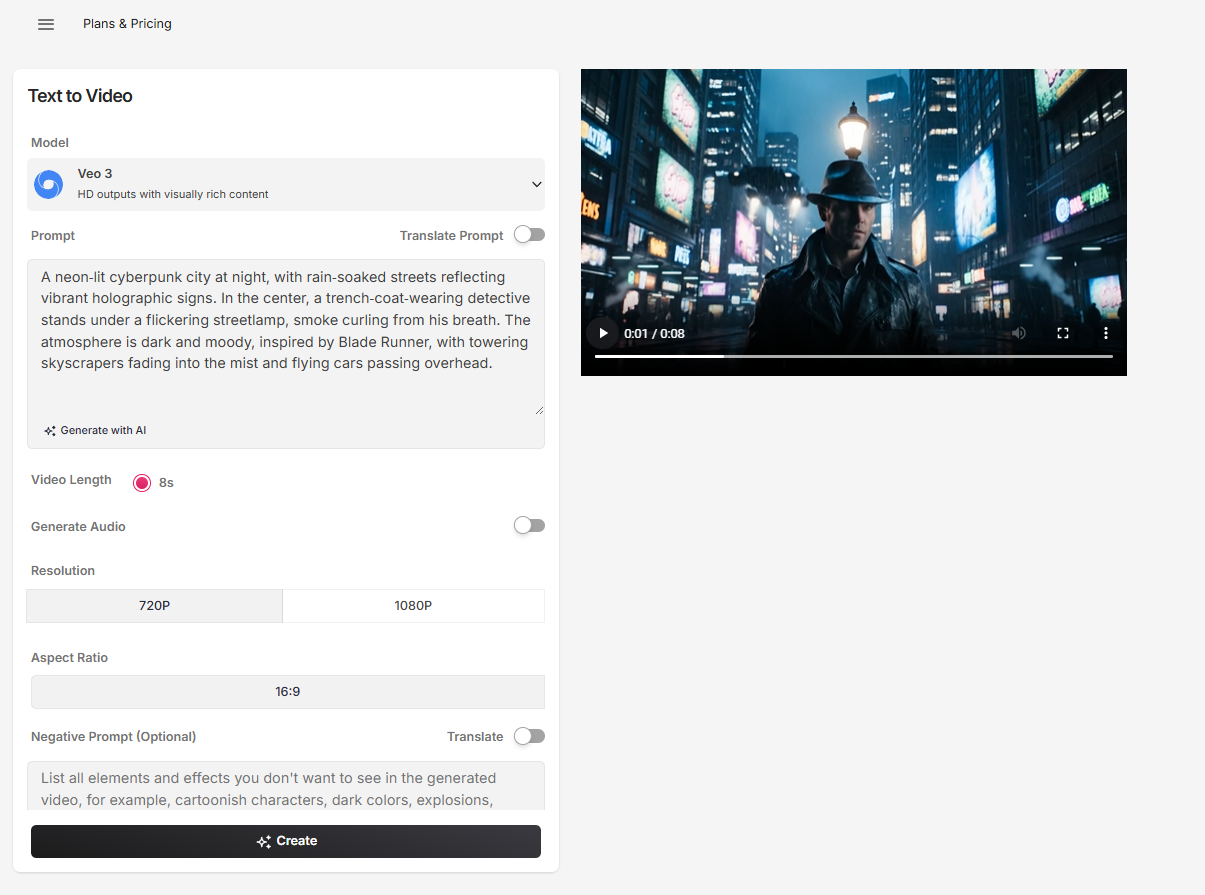
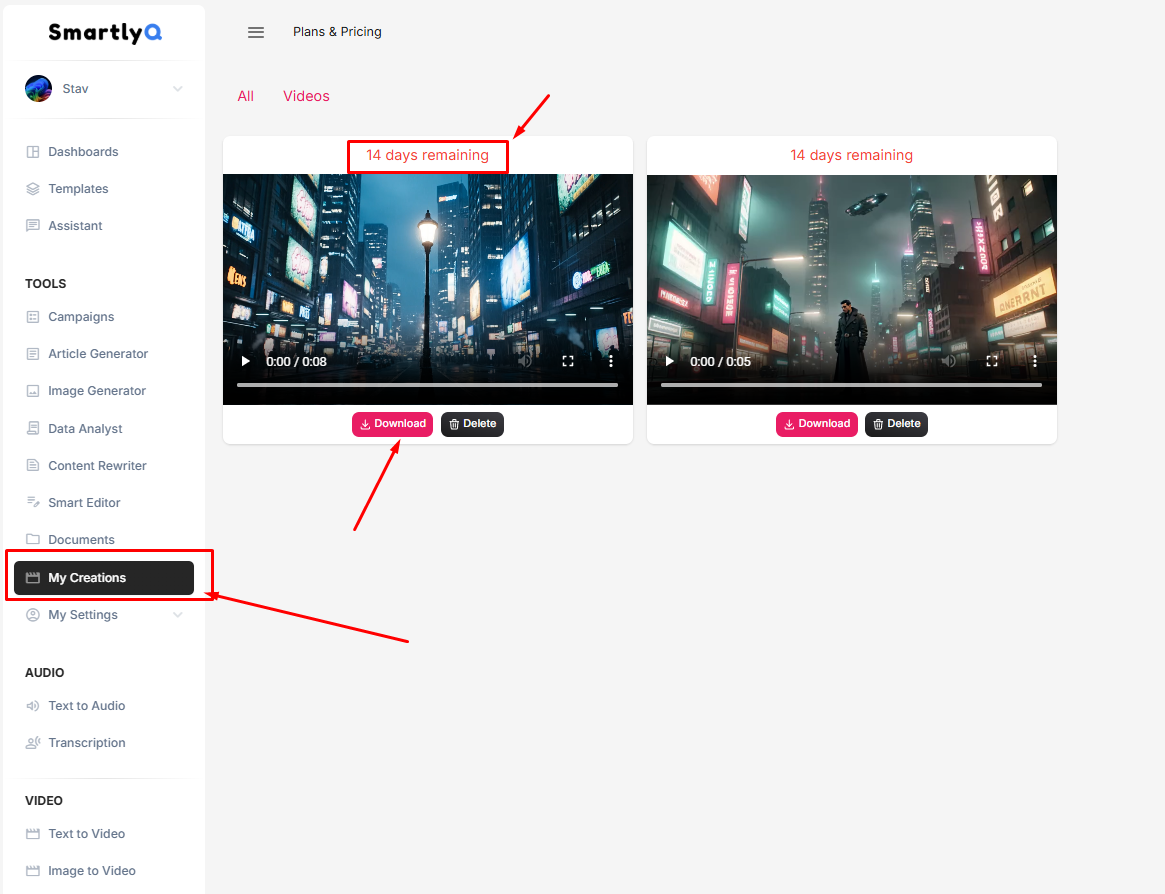
All your videos are stored in the My Creations space. Please note that videos are stored for a maximum of 14 days on our servers and are deleted beyond this limit. Should you wish to preserve your work, please ensure you download your videos somewhere safe before the 14 days have passed.